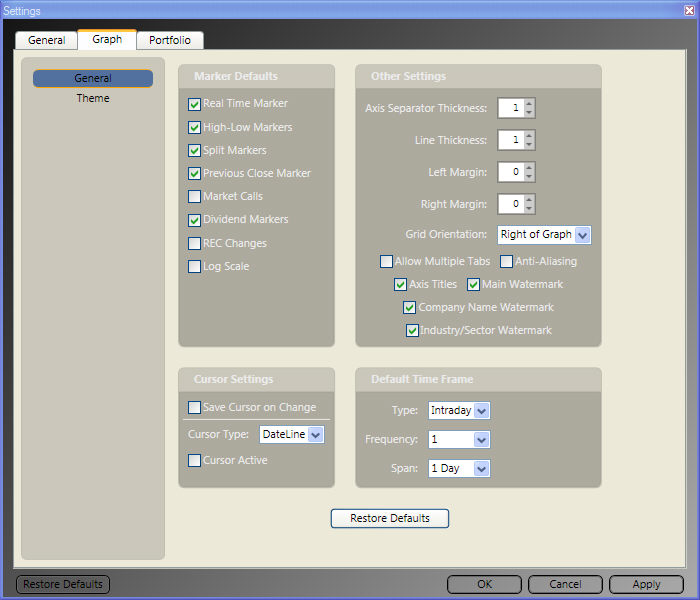
Default Graph Settings:
Default Graph Settings allow you to set default selections for graph themes, markers, cursors, time frames, and more.
To access the Default Graph Settings Tab, first access the Program Settings Window by clicking the Settings Icon, located next to the Alerts Button, in the top right corner of the program, then click the Graph Tab. You may also access these settings by clicking the Graph Tab on the Main Menu Bar, then clicking the Settings Icon to the right of the Tab Label.
Markers: Graph Markers bring significant information to the user's attention. There are eight markers included in the VectorVest Program, including Real Time, High-Low, Splits, Previous Close, Market Calls, Dividends, REC Changes, and Log Scale.
To choose default graph markers, click in the selection box next to the graph marker(s) you would like to be automatically displayed on the graph. Click "Apply" to complete any changes. For a complete description of each marker, click Graph Markers.
Other Settings: Other Settings allow the user to enable MultiView graphs, and graph tabs, as well as change several display aspects that affect the graph margin, line thickness, menu orientation, scaling, and labels. Click "Apply" to complete any changes.
Axis Separator Thickness will determine the width of the lines that separate the main graph and the sub graphs. Click the up arrow to increase the thickness of the graph separator, and the down arrow to decrease it. The default thickness is set to 1.
Line Thickness will change the width of the actual parameter displayed on the graph. Click the up arrow to increase the thickness of the parameter shown, and the down arrow to decrease it. The default thickness is set to 1. This setting is only applicable for line graphs.
Right Margin allows you to specify an empty area at the right edge of the graph to clearly delineate the last viewable data point. Click the up arrow to increase the right margin, and the down arrow to decrease it. The default margins are set to 0 so the graph will be displayed from edge to edge.
Grid Orientation will change whether the Parameter List is displayed on the right or the left side of the graph. The VectorVest default display is Right of Graph. To change this selection, use the drop down arrow to select "Left of Graph". When viewing a graph, the Parameter List can be completely hidden by using the show/hide arrows.
Allow Multiple Tabs enables you to use separate tabs when graphing securities. Each tab may also be detached from the main program to be viewed in a separate window. This feature also activates MultiView, which allows you to view up to four side-by-side graphs, in a single window. To enable this option, check the selection box next to "Allow Multiple Tabs". This setting is not selected by default. Click here for more information on viewing multiple graphs.
Anti-Aliasing will improve the appearance of the lines displayed on a graph, but may result in decreased display speed. To choose this option, check the selection box next to Anti-Aliasing. This setting is not selected by default.
Axis Titles label the parameters displayed in the main graph, and sub-graph(s). For example, Price, RT (Relative Timing), and Volume are displayed by default, the axis title would be located at the top left corner of each graph section. This setting is already selected by default. To hide the axis titles, uncheck the selection box next to Axis Titles.
Watermarks are displayed in the background of each graph to provide the ticker symbol (main watermark), company name, and industry/sector information. All watermark labels are displayed by default. To hide a watermark label, uncheck the selection box next to the desired watermark.
Cursor Settings: Cursor Settings allow the user to choose the type of cursor that is initially displayed for use on the local toolbar of each graph. By default, the dateline cursor is selected. Also by default, this cursor will not be active, i.e. displayed on the graph. To activate a cursor by default, read the options listed below. Click "Apply" to complete any changes.
Save Cursor on Change remembers and activates the same cursor that was last selected upon opening each successive graph. Check the selection box next to "Save Cursor on Change" to use this option.
Cursor Type is not available when "Save Cursor on Change" is selected. Cursor types include:
Crosshair Cursor: Displays price and time/date information along the vertical and horizontal axis of the graph, respectively. This information is reflective of the close of the day or the close of the bar selected. This is a dynamic cursor that will automatically track and display information based on the movement of your mouse. Additional parameter values will be displayed in the parameter list.
Horizontal Cursor: Displays price information along the horizontal axis of the graph. This is a dynamic cursor that will track and display information based on the movement of your mouse.
Vertical Cursor: Displays time/date information along the vertical axis of the graph. This is a dynamic cursor that will track and display information based on the movement of your mouse. Additional parameter values will be displayed in the parameter list.
DateLine Cursor: Information will be displayed in the Parameter List. This is a static cursor. Left click on the desired data point to display the information for the date/time selected.
Default Time Frame: The Default Time Frame section allows you to customize the default graph options for the type, frequency, and time span of the data displayed. Click "Apply" to complete any changes.
Type allows the user to select from Intraday, End of Day, End of Week, or Weekly data as the initial data type. By default, Intraday data will be selected. To change the selection, click the drop down arrow beside Type and select from the drop down menu.
Frequency allows you to define the number of minutes between data points. This selection is only available for Intraday data. By default, 1 minute will be selected. Click the drop down arrow next to the selection box to select a different default frequency.
Span enables you to choose the amount of data initially displayed on the graph. In addition to numerous predefined time frames, the "Best Fit" selection will determine the time span needed for optimal display based on the user's screen resolution. By default, 1 day is selected. Click the drop down arrow next to the selection box to select a different time span.
Restore Graph Defaults: Click the "Restore Defaults" button, located on the Graph Settings Tab (the button is located in the middle of the Graph Settings Tab, toward the bottom), to restore the program's original default graph selections and colors.
Graph Theme: Themes will allow you to make changes to the colors used in selected areas of the graph, including the background, axes, labels, grid lines, watermarks, extended hours, and market calls. To access graph themes, click "Theme" on the left panel of the Graph Settings Tab. Select a pre-designed theme from the drop down list, or create a custom theme by selecting colors for each of the areas listed. Click the drop down arrow to the right of the area you would like to change and use the chart to select a new color. Click "Apply" to complete any changes.